

Windows Setup — L2TP VPN via Softether
Step-by-step guide to set up an L2TP VPN connection on Windows using the Softether VPN Client.



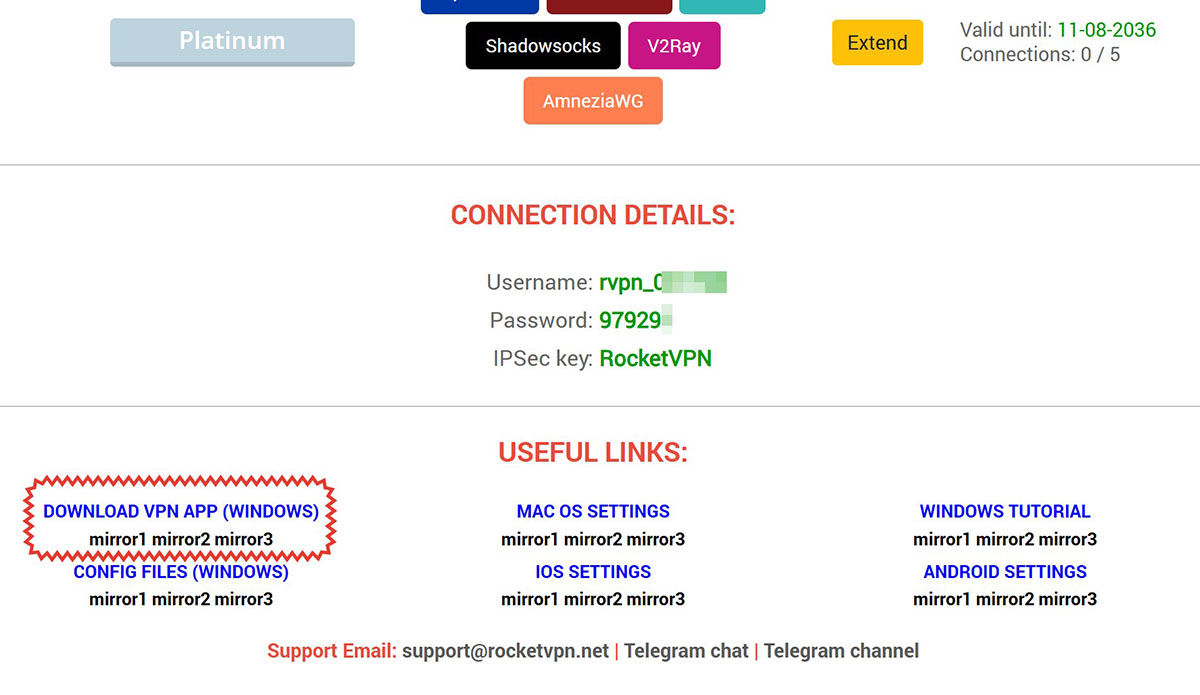
1. Software installation
Unzip the file using any ZIP archiver. Inside you will find the installation file, the Anydesk remote desktop program, and a configuration folder.
Install the VPN CLIENT.exe app. Leave all installation settings at their default values — click "Next" and continue to the end. Once installed, launch the program.
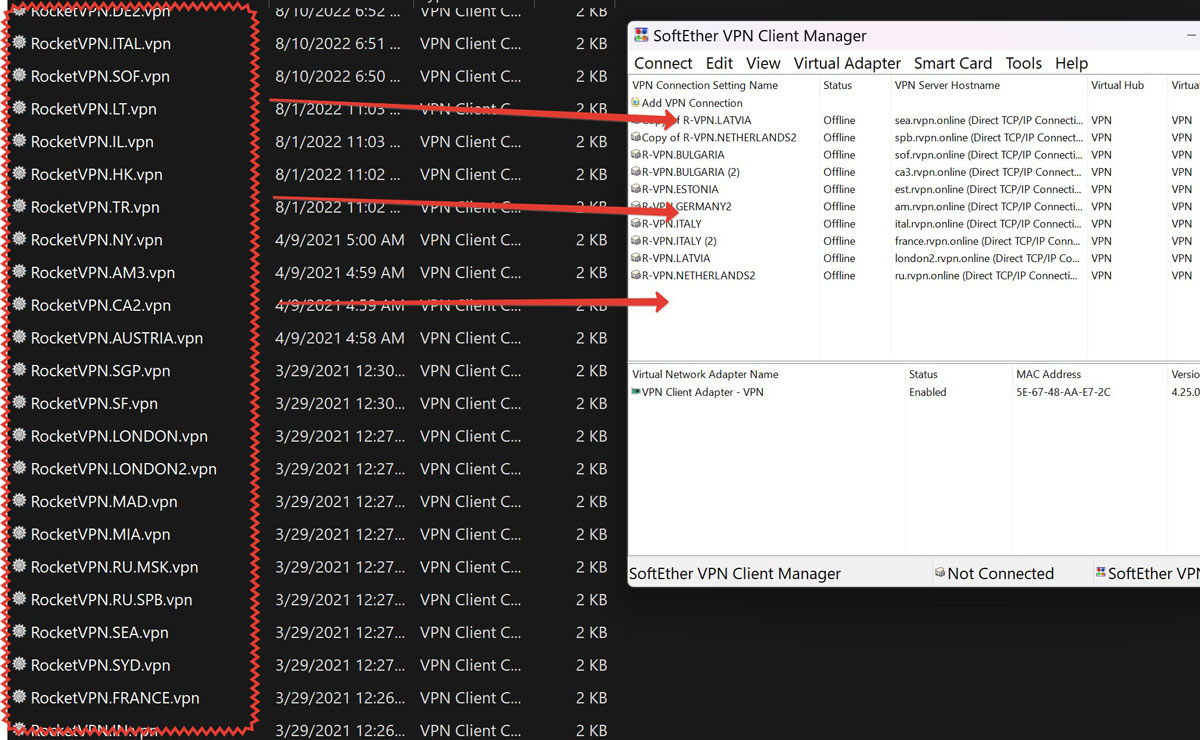
2. Adding a connection
Open the Config Files folder. Run each file from top to bottom in order. They will open with the Softether VPN Client you just installed and appear in the connection list. They are already configured — all you need to do is establish a connection.
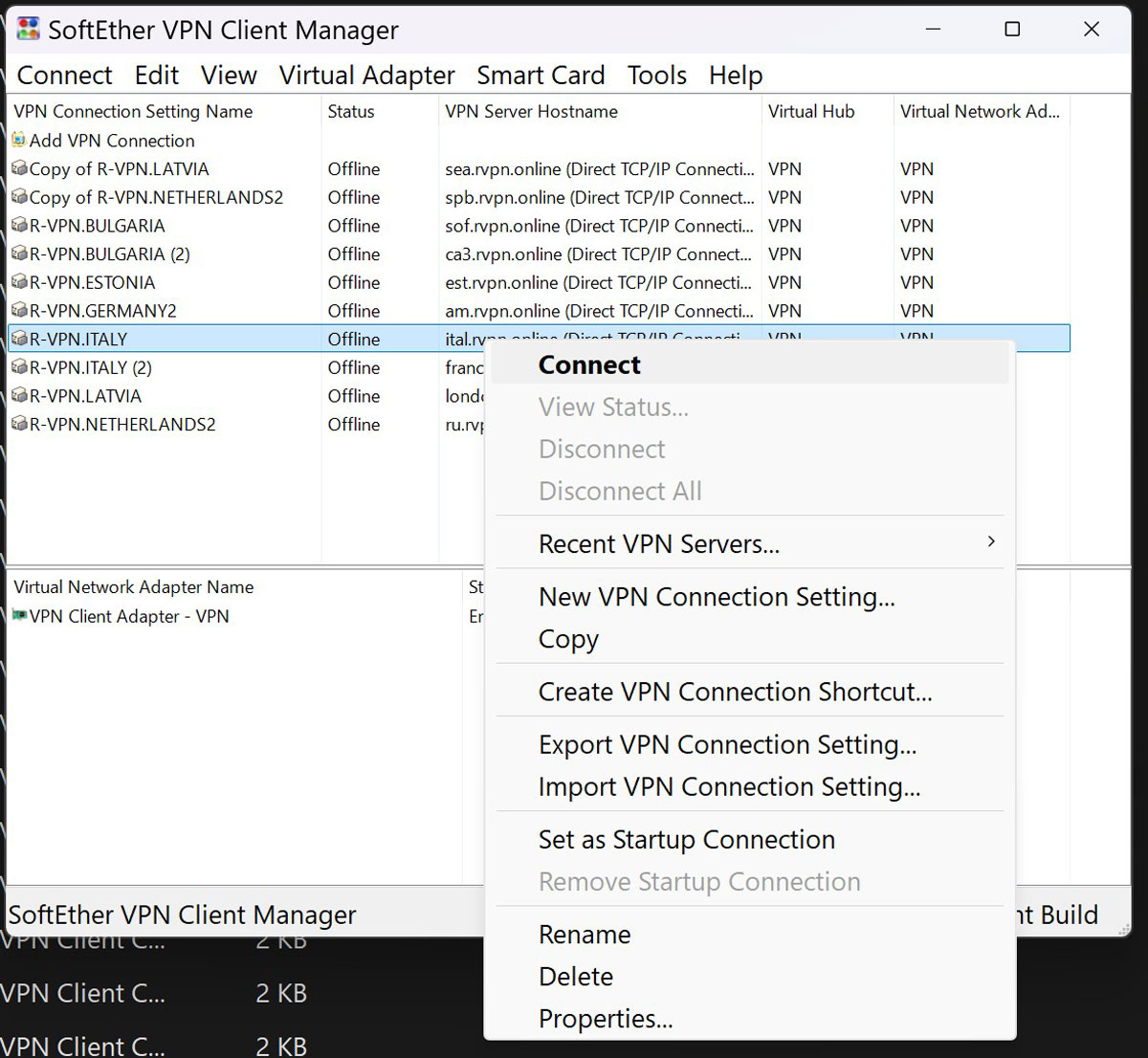
3. Connect to the servers
Connect to a server by right-clicking and selecting Connect, or simply double-click on the server name line.
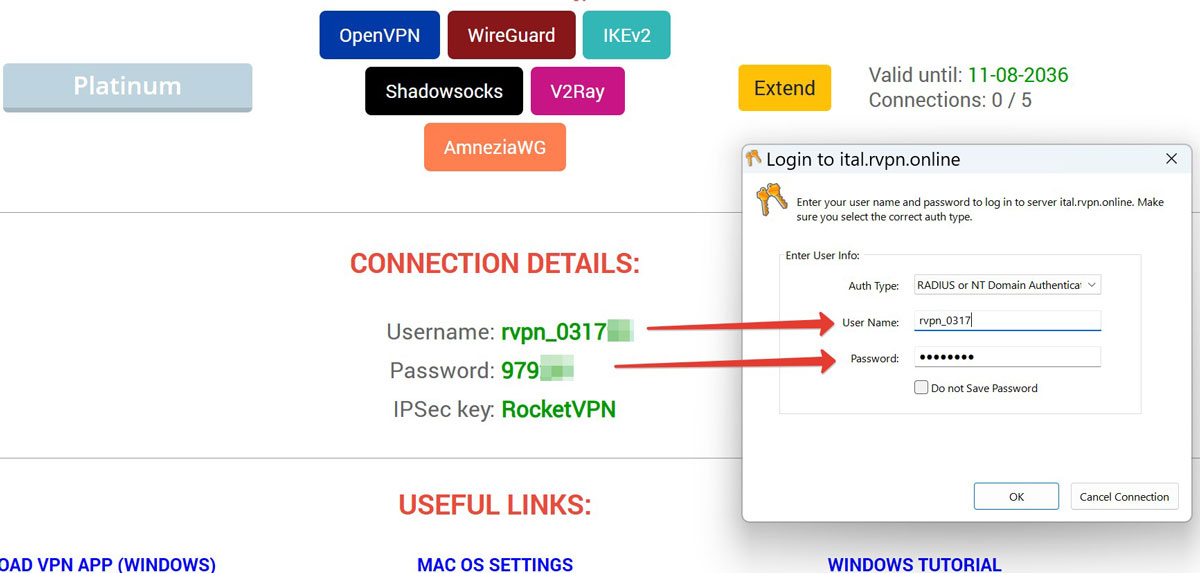
4. Enter data from the website
Carefully copy your username and password from the control panel. There must be no spaces at the beginning or end. For convenience just click the username — it copies automatically — then paste it into the connection window.
All servers on this list are operational. If you see a "Server unavailable" message when trying to connect, your access has been blocked by your regulator — try a different server.
Remember that internet blocks are not static! Once you've found at least 5 working servers, save these connections and switch between them as needed. If a server becomes unavailable, go through the list again — some previously blocked services may become available again at some point.
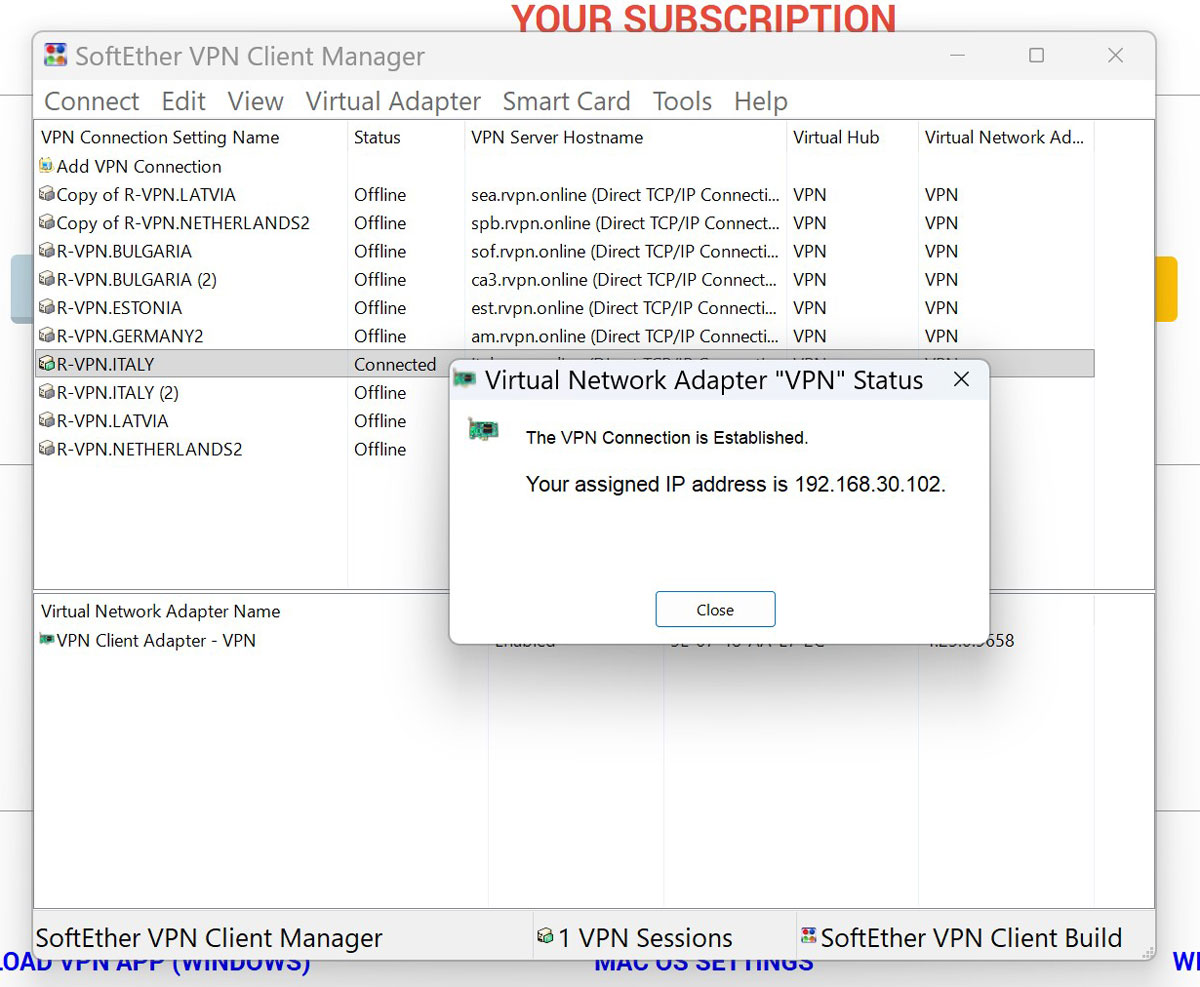
5. Connection established
Your connection is established. You no longer need to enter your username and password — just select a server from the list, double-click it, and the connection will be established immediately.
To disconnect, right-click on the connected server and click Disconnect from the menu.