

iOS Settings — L2TP VPN on iPhone and iPad
Step-by-step guide to set up an L2TP VPN connection on iOS (iPhone and iPad).



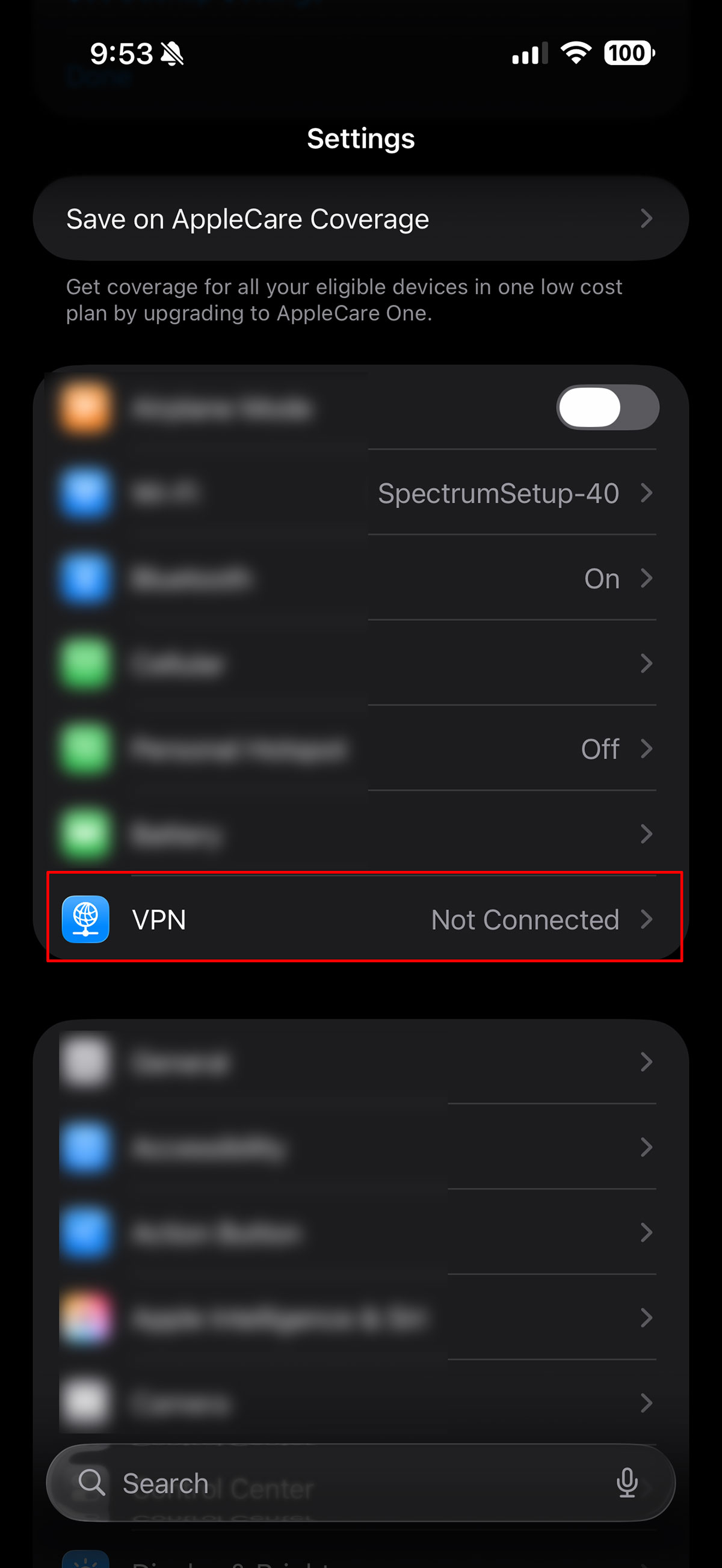
1. Settings
Go to your device settings and find VPN there.
Click on VPN to enter connection settings.
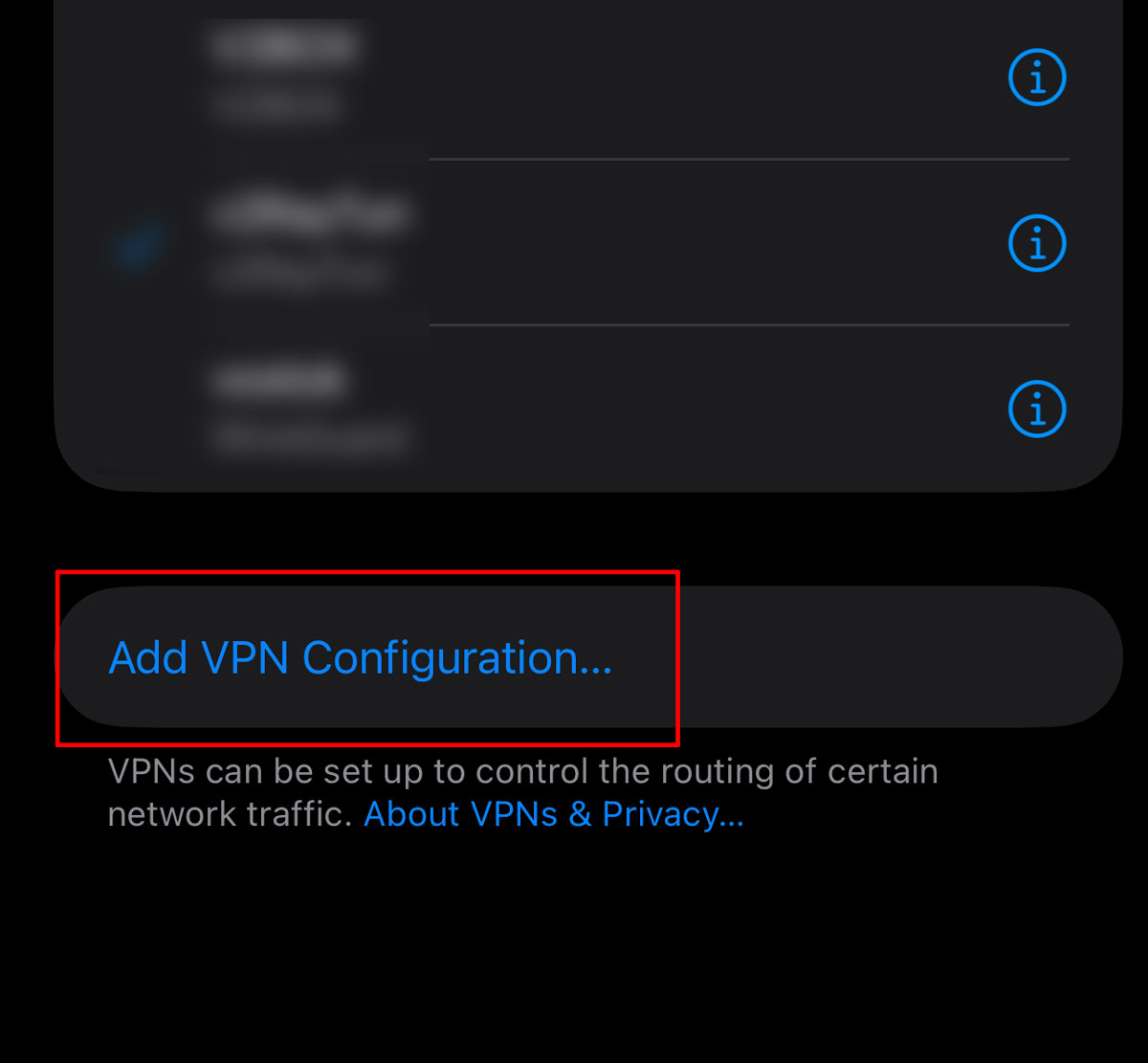
2. Adding a connection
At the bottom of the settings there is a button to add connections. Add a connection using the L2TP protocol.
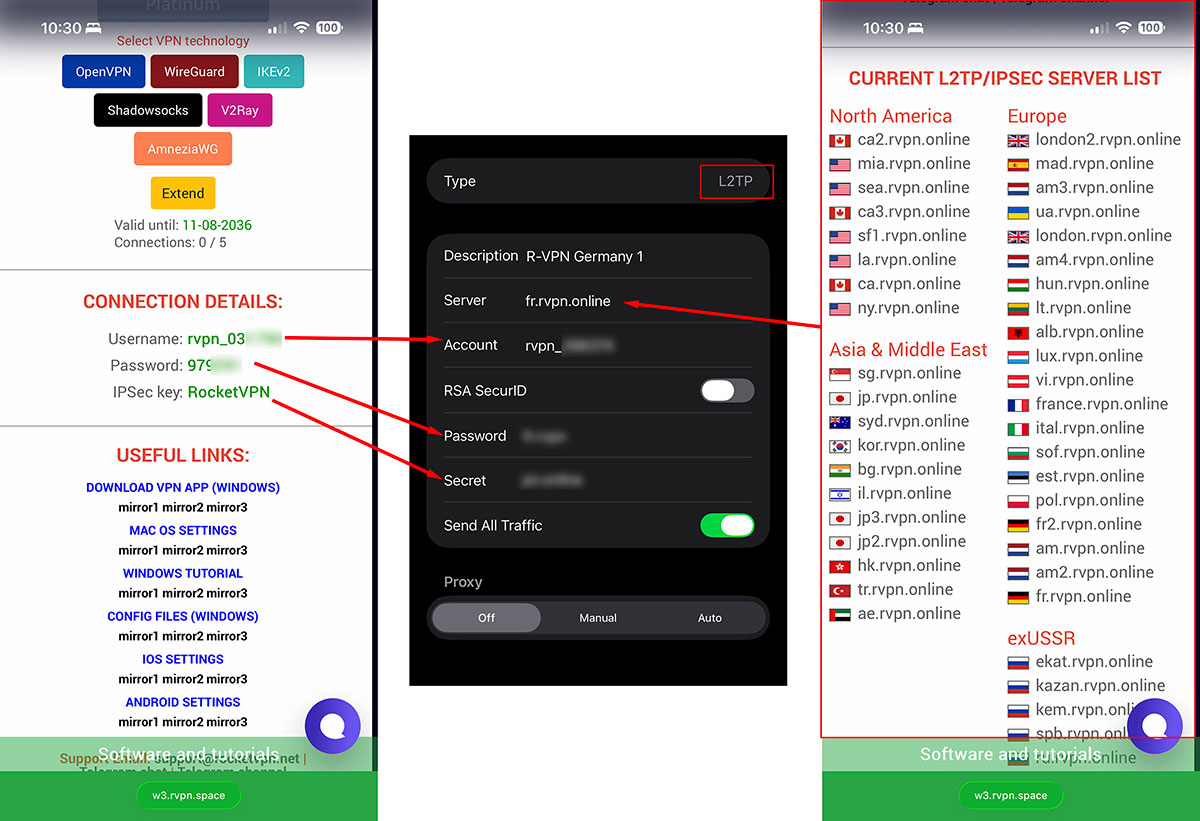
3. Entering connection details
Copy the data provided by the service. The server addresses are at the bottom of the page. The account and password are at the top of the page.
Carefully copy and paste this information into the settings. Select servers based on geographic location unless you have a specific preference. The addresses closest to you will have a lower ping.
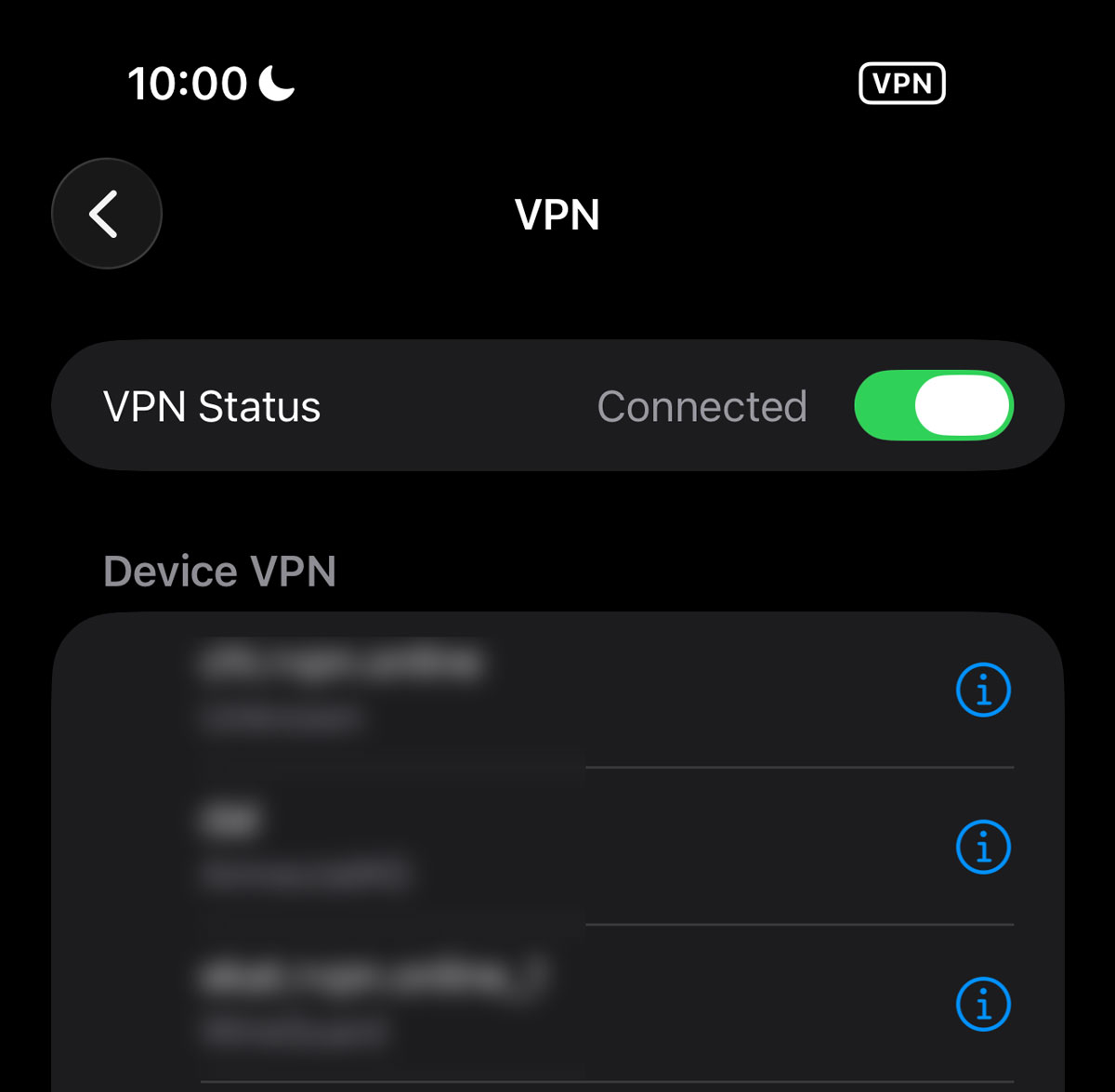
4. Connection
Select the newly created connection and move the connection slider. After a few seconds, the connection will be established and the VPN icon will appear at the top. You are now successfully connected.
If you see the "Authentication Error" message, carefully check your username and password. They should not contain any extra characters, including spaces.
If you see a message about the server being unavailable, it's likely that your ISP is restricting the subnets the server is located in. Try connecting again; your connection to your ISP may be unstable. If it doesn't work after several attempts, go to your settings and change the server address. Then try again.
Create at least five connections to different servers in different regions of the world. Check that they are all working. Switch between them as needed.