

macOS Setup — Happ (V2Ray)
Set up V2Ray on a Mac with Happ: a universal .dmg for Intel and Apple Silicon, the link from your RocketVPN dashboard and five steps.



Below is a step-by-step guide with screenshots: from installing Happ to the first connection. There are two ways to install it on a Mac, and both are covered in the first step.
Before you start, open your dashboard on rocketvpn.net and switch to the V2Ray technology — that is where the vless:// link comes from.
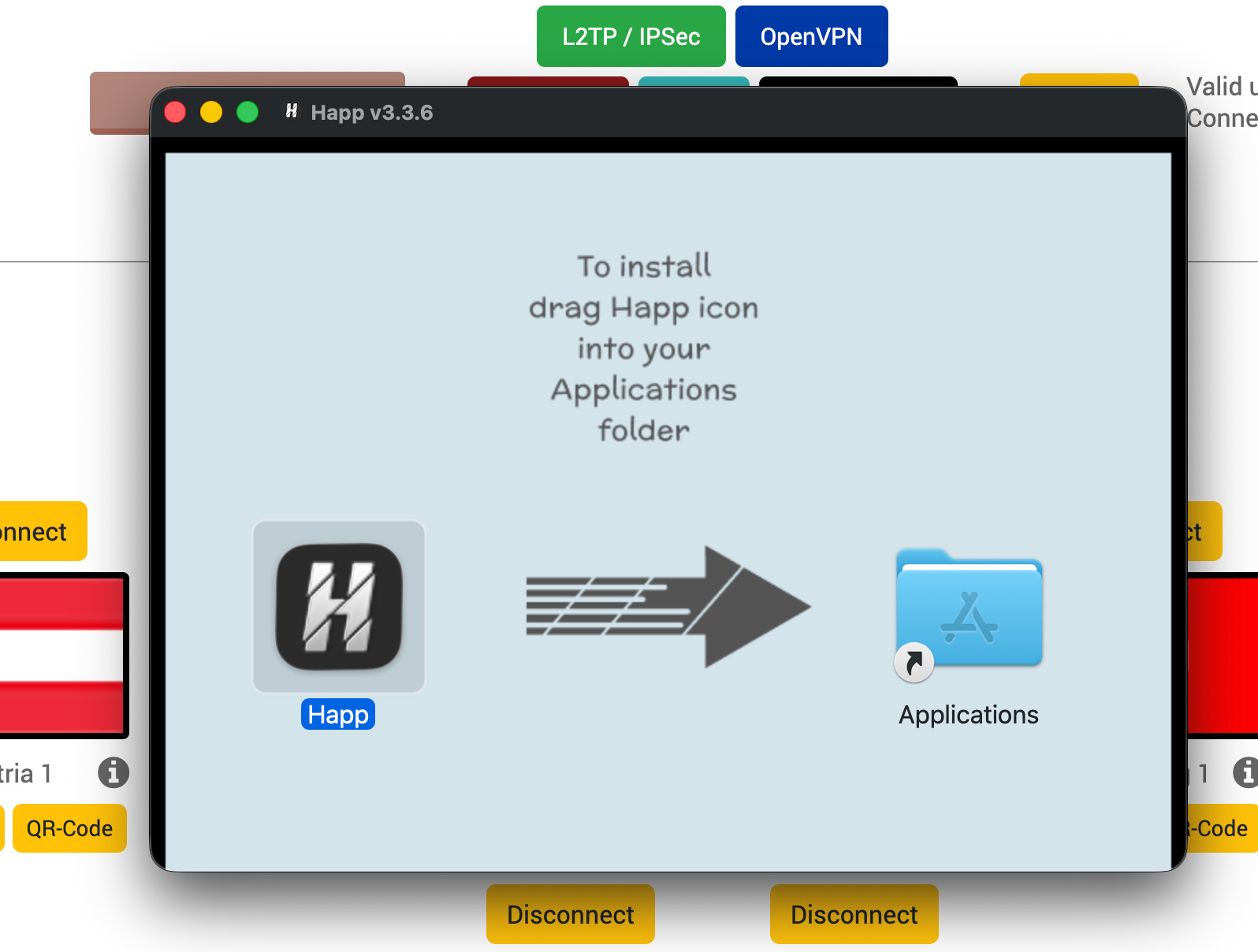
1. Download
Download the DMG from our website — a universal build for both Apple Silicon and Intel Macs, macOS 13 or newer. Open the image and drag Happ into the Applications folder.
On Apple Silicon running macOS 15 or newer you can also install it from the App Store. It is not published in the Russian App Store, so the .dmg is usually the simpler route.
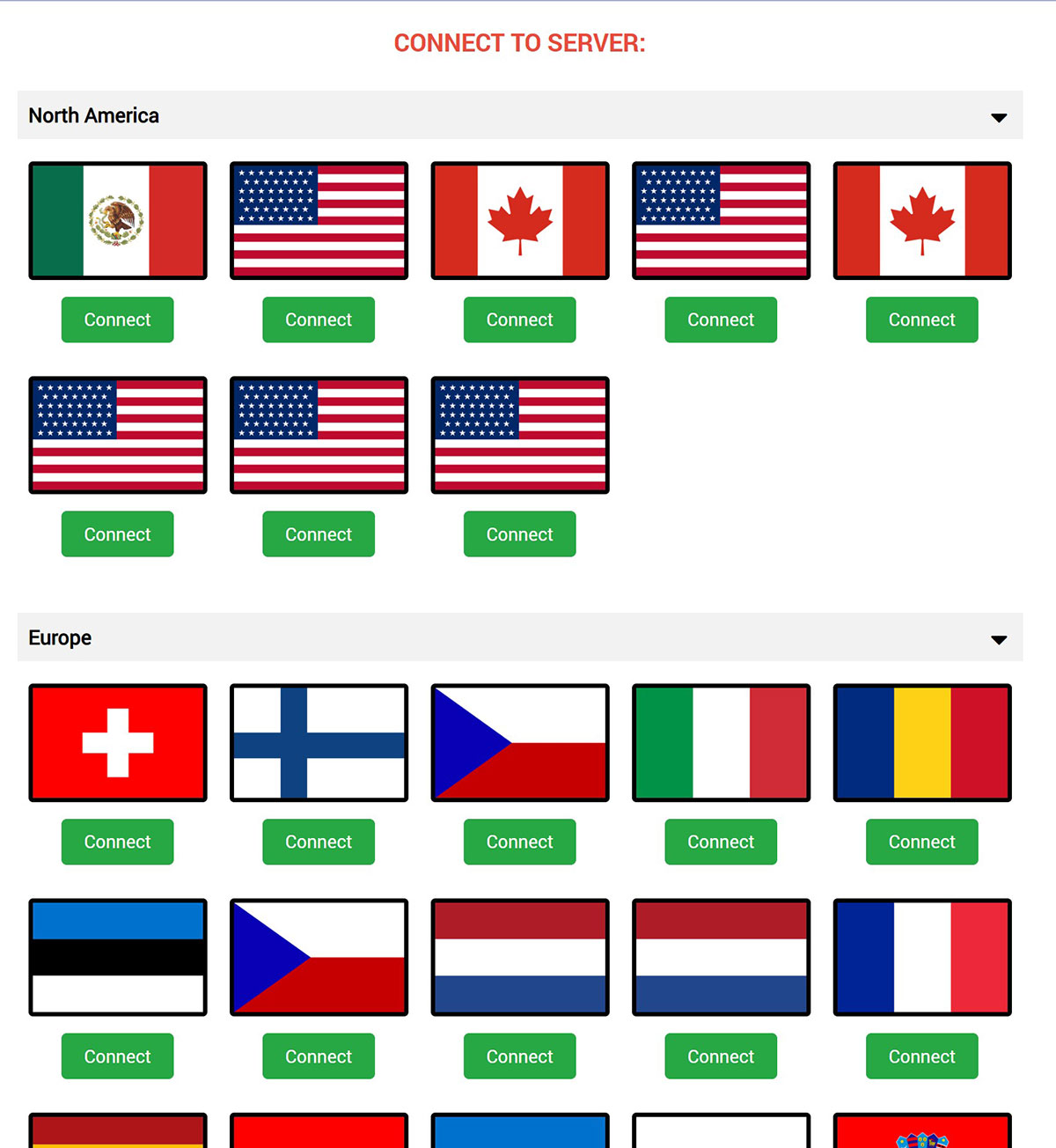
2. Server activation
Open your dashboard, switch the technology to V2Ray and activate servers by clicking the flags. Prefer geographically closer countries and activate several at once.
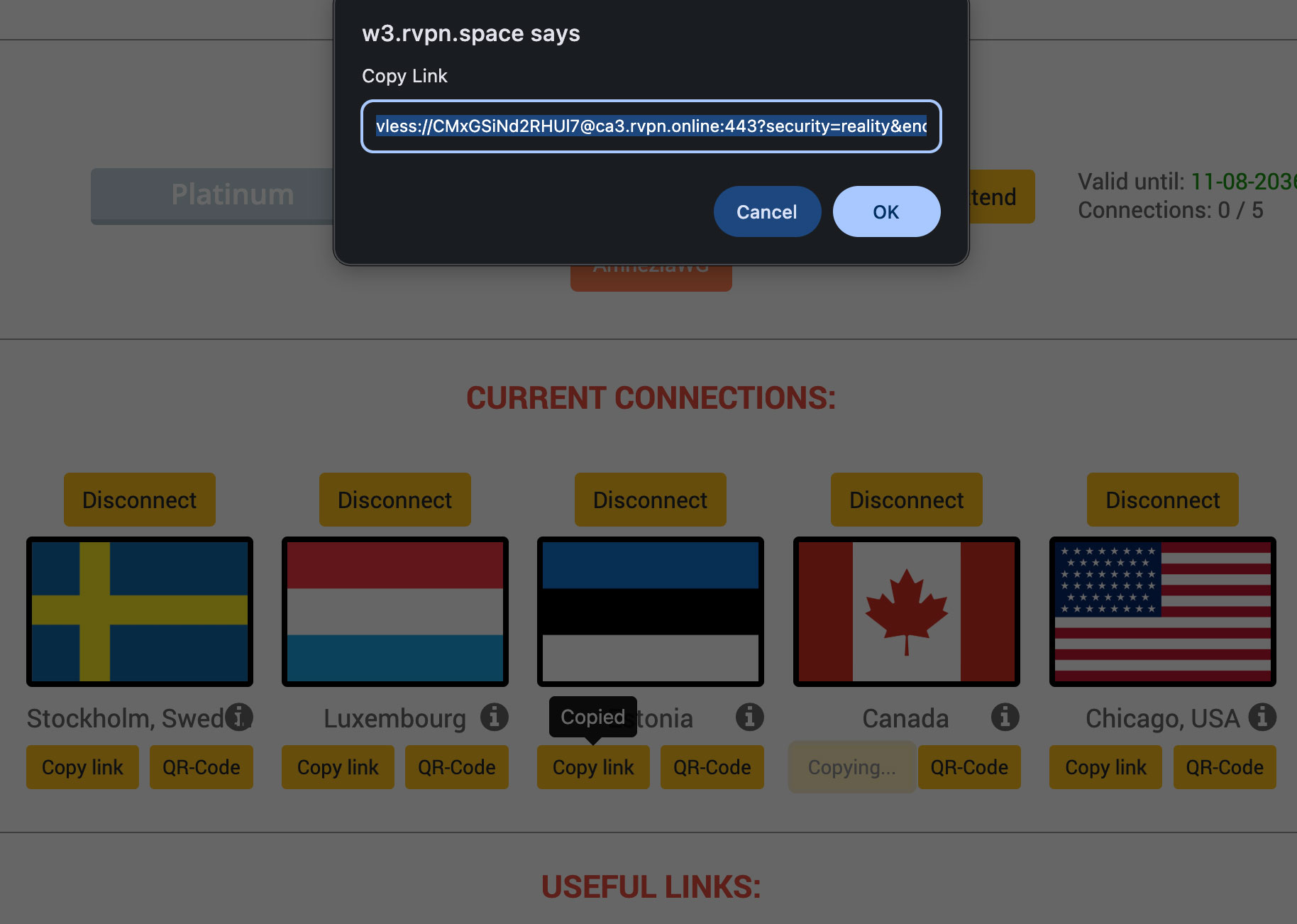
3. Copying the link
Every activated server has a “Copy link” button — it copies a vless://… link to the clipboard. The “QR-Code” button next to it is for setting up a phone with the same config.
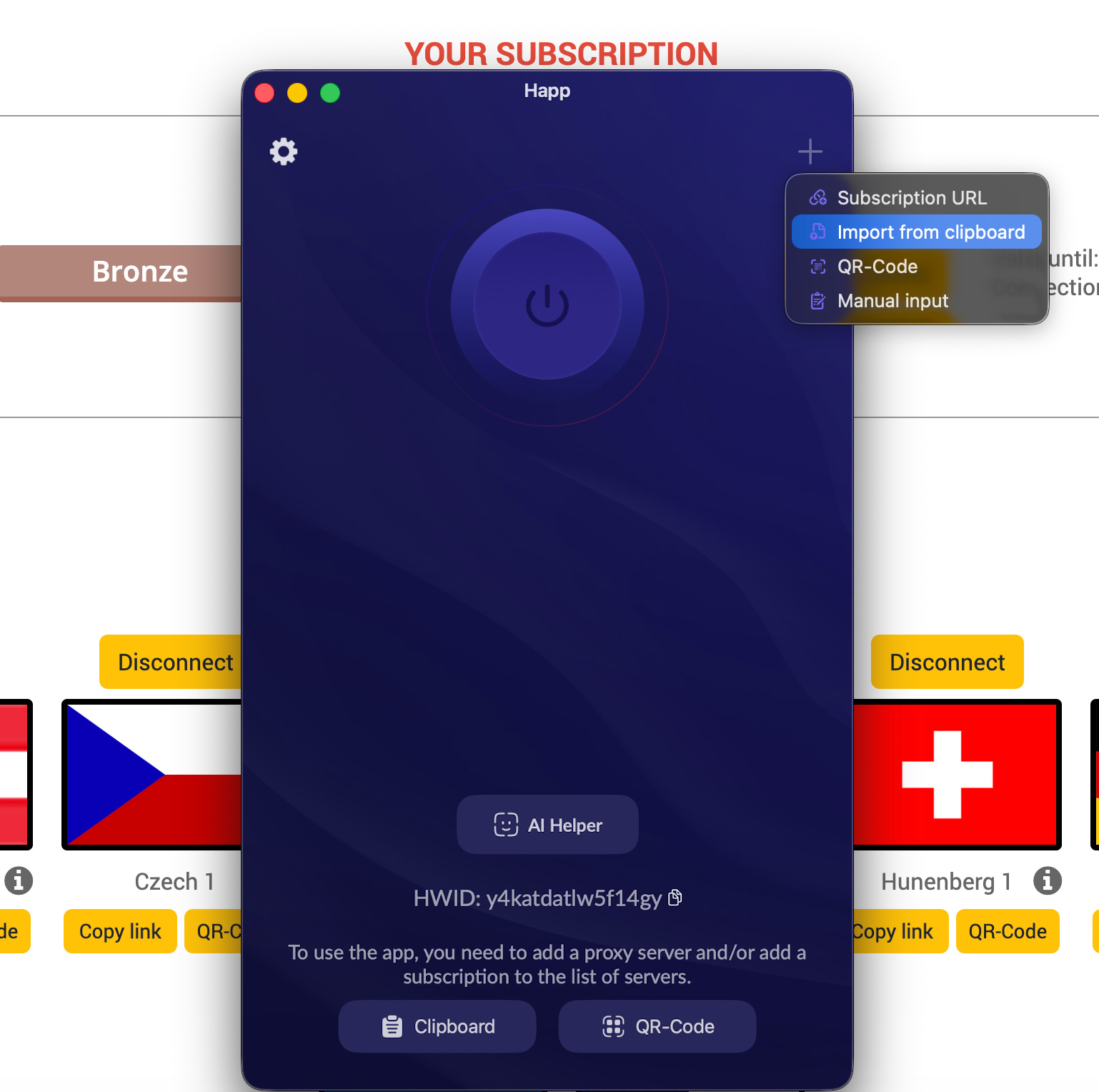
4. Configuration import
How you add a configuration depends on where Happ came from. The App Store build: “+” in the top-right corner of the window → “Import from clipboard”. Our .dmg: “+” in the left sidebar → paste the link into the “Subscription URL” field → press “Add”.
Repeat for the other servers so countries can be switched right in the app.
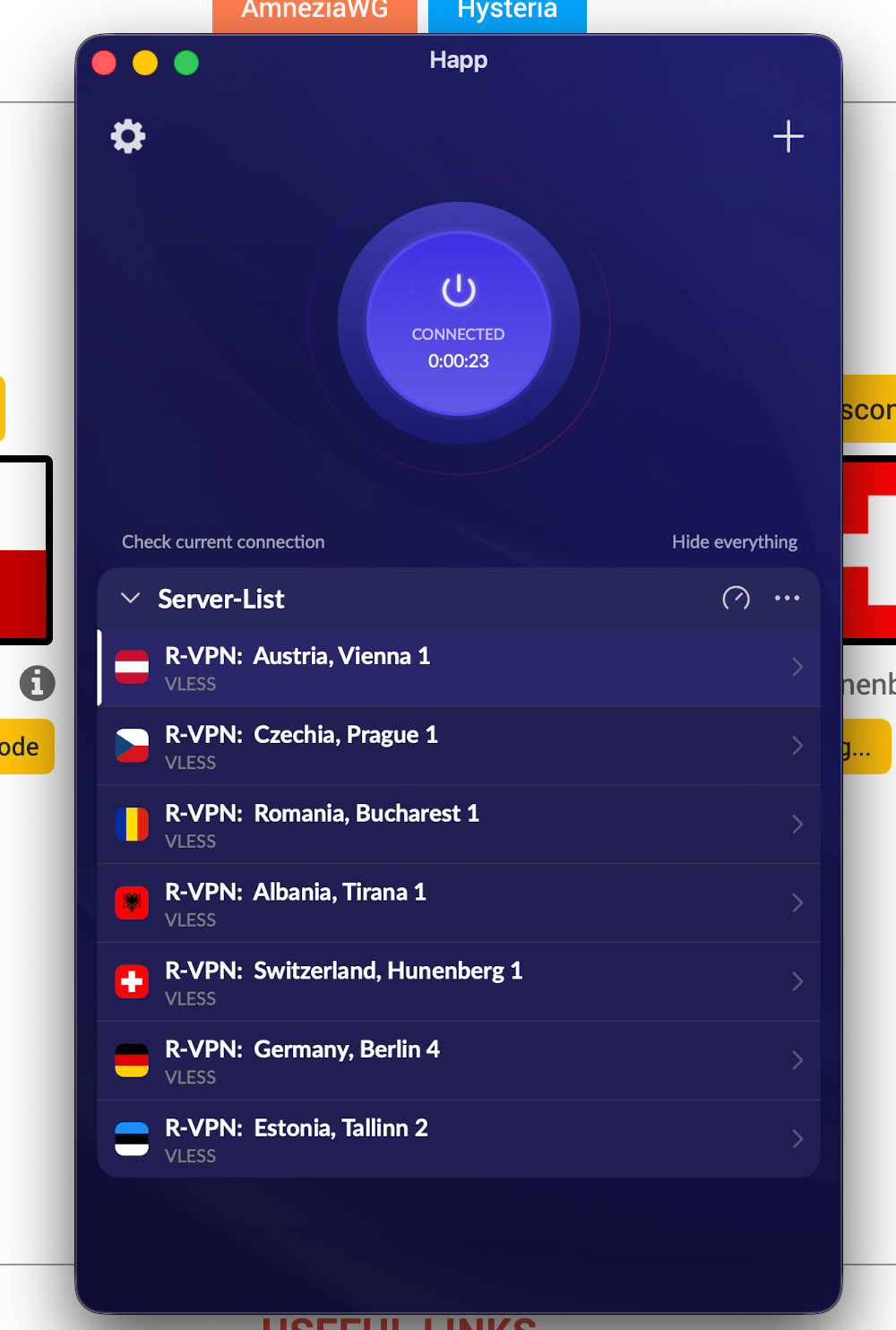
5. Connection
Select a configuration from the list and press the big connect button. macOS asks once to allow adding a VPN configuration — confirm it with your account password. Once the timer starts and a connection icon appears in the menu bar, the connection is up.
If the connection does not come up
The configuration was added but nothing connects. Check that the V2Ray technology is selected in the dashboard: a vless:// link only works with V2Ray servers. Then try another server from the list — a neighbouring location often comes up straight away.
Connected, but sites do not open. Usually the provider blocks the subnet of the data center the chosen server sits in. Remove it from the app and from the dashboard, activate a different one and add that instead.
The link will not paste. Copy it again with the “Copy link” button — copying by hand easily loses part of the string. The link always starts with vless://.
How to tell the VPN works
The first sign is the connection timer in Happ itself and the system VPN indicator. A more reliable check is the visible IP address: open any IP-checking service before connecting and after — the address and the country should change to the server you picked. And the most practical test is simply opening the site you needed the VPN for.
Keep a few servers in reserve
It makes sense to keep 4–5 configurations with different countries in the app. A server that flies today may lag at peak hours tomorrow — that happens with any provider. With a ready list, switching takes a second and there is no need to go back to the dashboard. The Bronze plan includes every location with no traffic limit, so a reserve costs nothing.
Frequently asked questions
Which macOS version is required?
Our .dmg is a universal build for Apple Silicon and Intel Macs and needs macOS 13 or newer. The Mac App Store version runs on Apple Silicon only and needs macOS 15.
I have an Intel Mac — does Happ work?
Yes. Take the .dmg from our site: the build is universal and runs on both Intel and Apple Silicon. No Apple ID needed for it.
The app is not in my App Store.
It is not published in the Russian or Chinese App Store. The .dmg from our site is simpler — no store involved.
What about macOS 12 and older?
Happ will not install there. The built-in macOS IKEv2 and L2TP/IPSec clients remain, as do WireGuard and OpenVPN Connect.
To avoid picking servers blindly, use our Radar service — radar.rvpn.online: it shows which servers are up right now and how fast they respond. Sign in with your VPN login and password.
If something does not work out, message our online consultant — the turquoise rocket icon in the bottom-right corner of the site and the dashboard. We will help and answer your questions.
What next
The guides for Windows, iPhone and Android work the same way. The full list is in the instructions section.