




How to Set Up VPN on Kindle Fire: Step-by-Step Guide
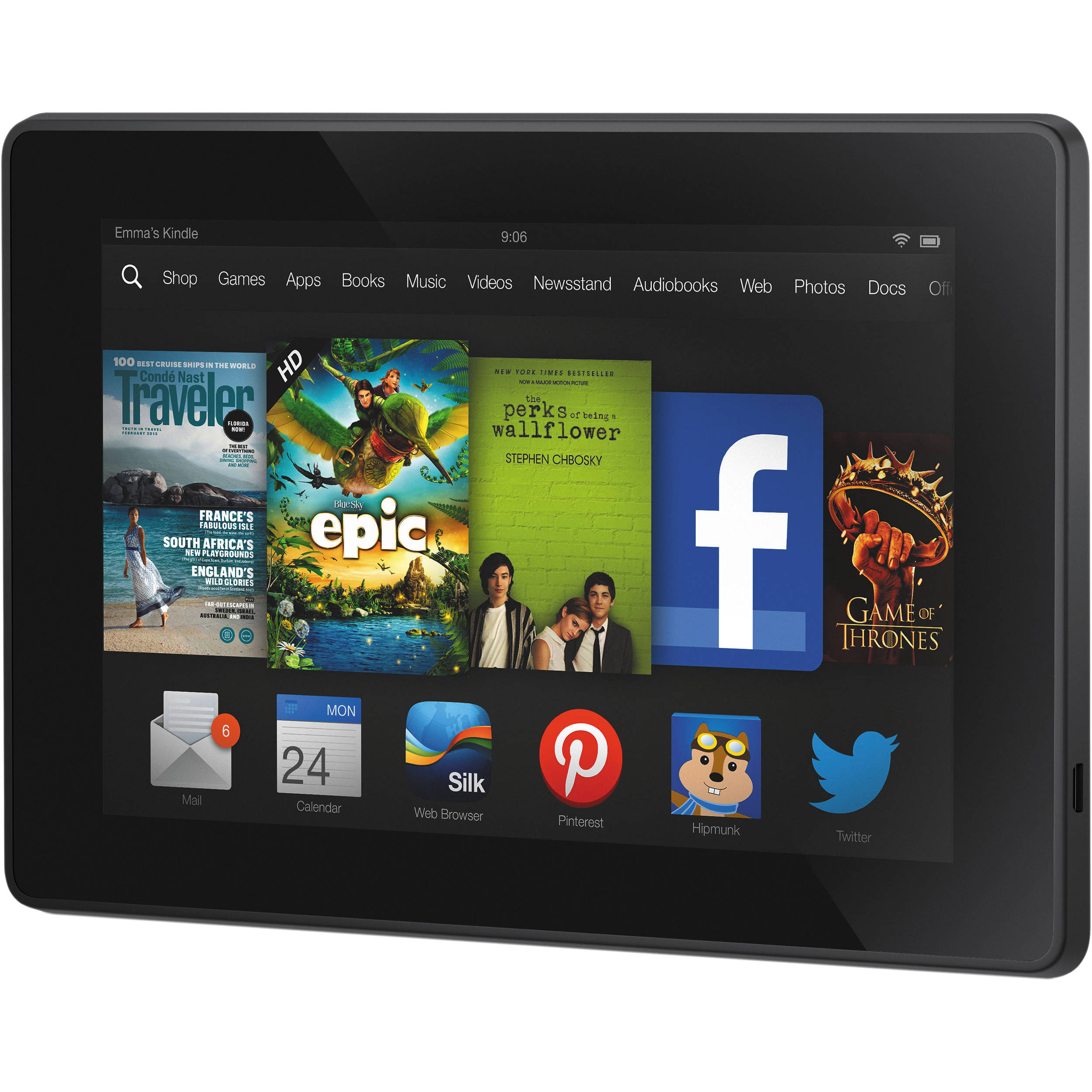
Learn how to access Google Play and other sites on Kindle Fire using VPN with easy setup instructions.
Just half a year ago, Amazon had virtually no VPN applications available for Android devices. Today they're here, making it significantly easier to bypass restrictions on these tablets.
Now you simply subscribe to the best VPN service for Kindle and use it through OpenVPN software. After installing a standard APK file, just import the settings and password you receive from RocketVPN service and enjoy truly unrestricted internet access.
A bit more involved, but only for Kindle Fire and Kindle Fire HD
The setup may seem a little complex, but it actually takes just one or two minutes. Plus, all our instructions are available on our website with pictures and explanations.
Here's how the process looks step by step:
- Get a RocketVPN subscription—the pricing plans are optimal for most users.
- Next, you'll need to install OpenVPN for Kindle. I'll explain this step in detail: first, in your Kindle Fire settings, enable the option "Allow installation of apps from unknown sources" by going to "Advanced" then "Device".
- From the Amazon Appstore, install the free app ES File Explorer (file manager). Download the OpenVPN installer file from a reliable website. Using a USB cable to connect to your computer, copy the installer file to your Downloads folder. Go to your tablet, open ES Explorer, and navigate to Downloads. Then install the APK file as usual.
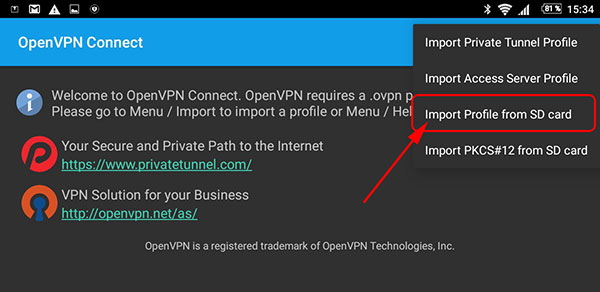
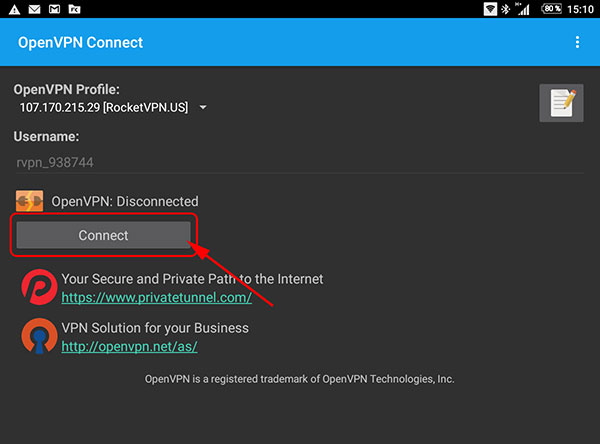
- You'll need to configure OpenVPN on your tablet using the configuration file you received when you subscribed to RocketVPN. Copy these files to your Kindle Fire's Downloads folder as well, then import them into the OpenVPN app.
Simple solution for all devices in your home
An even simpler method is to set up VPN on your router. Then all your internet traffic will go through it, and Amazon won't be able to block your access to Google Play or other sites.
Most modern routers support VPN configuration, which you can verify by contacting RocketVPN support. They'll send you step-by-step instructions or a ready-made configuration file for your router. Using these, you'll achieve high download speeds while staying private online. All your data will be encrypted, and your browsing history will be invisible. This way, you can install games and apps on your Kindle Fire or Kindle Fire HD from Google Play Store without any restrictions.