




Smart TV VPN Setup: Step-by-Step Guide to Internet Access
Two methods to configure Smart TV for internet access through VPN and bypass regional restrictions.
If you have access to Google Play Store or Android Smart TV, you can install a VPN app directly on your television. This is the optimal setup option. However, not all Smart TV models support this, so we'll cover alternative methods today.
1. Your Smart TV Runs Android.
In this case, you'll need to perform a few straightforward steps. Once complete, you'll gain access to an enormous library of Full HD content from around the world.
First, subscribe to RocketVPN—the prices are affordable and accessible to virtually everyone.
Following the picture instructions on our website, download and install the APK file (Android installation file) on your Android smartphone. Launch it on your phone to verify it works. Then, using the same Google Play Store account, launch the application on your Android TV and connect to a server. You'll now be virtually located in your chosen country and access all content from that region. All transmitted and received data will be encrypted with military-grade security protocols.
2. VPN Connection from PC or Laptop
Most users connect their Smart TV to a computer via Ethernet cable. This simple method allows you to share internet with pre-configured VPN settings to your Smart TV. It's an effective approach—your television gains VPN-protected internet access even if it doesn't support direct VPN app installation.
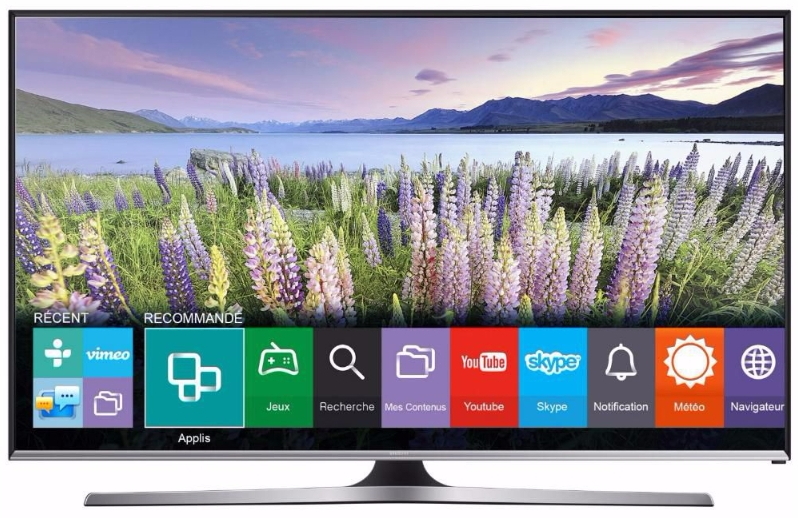
First, you'll need a RocketVPN subscription. We especially recommend the multi-login feature, which lets you use up to 5 devices simultaneously with the same login credentials. You'll then enjoy high-quality streaming of international video content in HD or Full HD. Connect your television to your computer using an Ethernet cable. Open Network and Sharing Center and select Change adapter settings.
Next, open your VPN connection, right-click it, and select Properties. In the Sharing tab, check the box for Allow other network users to connect through this computer's internet connection. Select Local Area Connection from the dropdown and click OK.
Finally, restart all devices and enjoy fast, unrestricted access to content.