




PS4 VPN Setup: 2 Simple Methods for Secure Internet Access
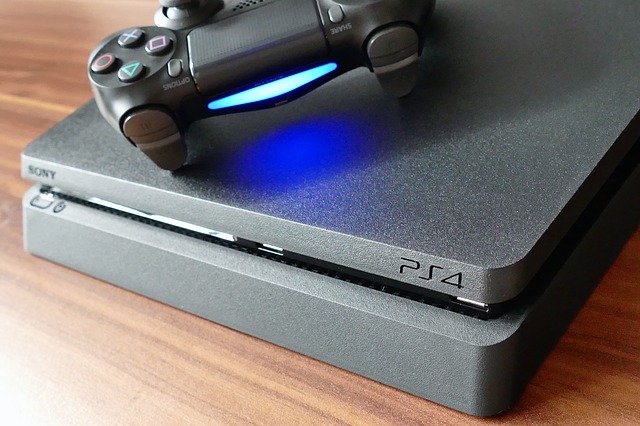
Configure PS4 VPN in 2 easy steps. Get fast, secure internet access on your PlayStation 4 with RocketVPN.
I'll walk you through two simple methods to set up VPN on PlayStation 4. Just a few adjustments to your internet settings, and you'll have full VPN support on your PS4.
Method 1: VPN Setup Through Your Router (Wi-Fi)
First, subscribe to RocketVPN, one of the best VPN services for PS4. Install all necessary software and configure it on your computer. Next, you'll need administrator access to your router's control panel. Navigate to the Network or WAN settings. Enter all the credentials that RocketVPN provided: username, password, and VPN server address. Save your settings and exit the router panel.
Turn on your PS4. Go to Settings, then Network Settings. Select "Set Up Internet Connection" and choose "Wi-Fi". When prompted, select "Easy" setup. Your Wi-Fi network should appear—enter your connection details. Make sure the "Use Proxy Server" option is unchecked. Now test the connection to confirm everything works.

Method 2: VPN Connection from Computer to PS4
This method requires an Ethernet cable along with software configuration. Subscribe to RocketVPN and install the software on your computer or laptop. Connect your PS4 directly to your computer using an Ethernet cable. On your computer, open Network and Sharing Center. Click "Change adapter settings" on the left side. Right-click your VPN connection and select Properties.
Choose the Sharing tab. Check the box that says "Allow other network users to connect through this computer's internet connection".
In the "Internet connection" dropdown menu, select your VPN connection. Now connect to VPN on your computer and select a server in your desired country.
Turn on PS4. Go to Network Settings, then Network Options, and select "Set Up Internet Connection". Choose "Use a LAN Cable". Select "Easy" setup method and confirm that you don't need a proxy server. Save your settings and test—previously unavailable services should now work.