




How to Set Up VPN for Apple TV: Step-by-Step Guide
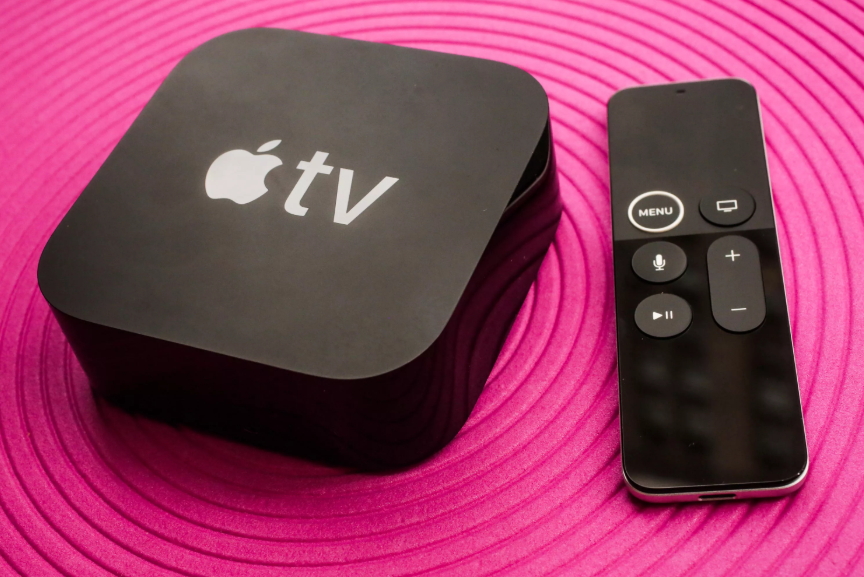
Learn how to configure VPN on Apple TV with our expert instructions and proven methods
Currently, there are only two ways to set up VPN on Apple TV:
- Configure VPN settings on your router and connect Apple TV through it.
- Use a personal computer as your internet gateway and connect Apple TV to it.
As of now, you cannot configure VPN directly on Apple TV itself, even on the latest version.
The Simplest Method
The easiest way to set up internet access through a VPN is to simply connect your Apple TV to a router that already has VPN configured. You can purchase pre-configured routers with VPN settings built-in or set them up yourself in just one or two minutes.
This approach gives you complete protection for all your internet-connected devices, including Apple TV. When using a router with VPN enabled, every device connecting to it automatically receives full anonymity and privacy protection.
Router-based VPN configuration is the most popular method today. Plus, it's incredibly easy to change your login credentials or adjust settings on a single device. You'll get a secure internet connection and unlock content from the US and European countries on Apple TV.
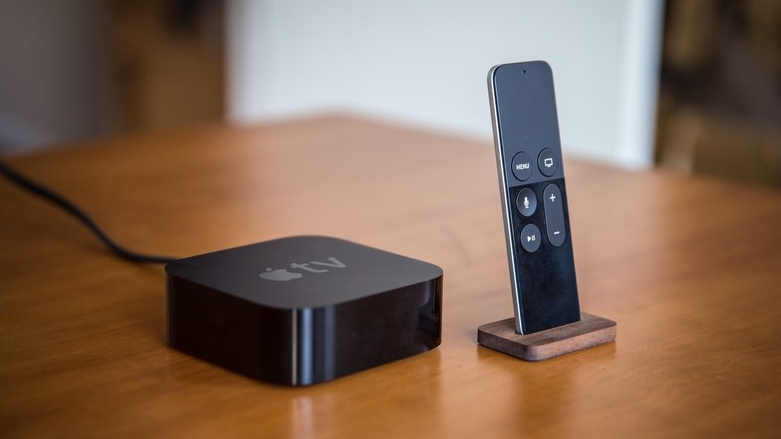
Setting Up VPN on PC or Laptop for Apple TV
This method also works great for unlocking geo-blocked content. It just requires a few extra minutes of setup. First, choose a RocketVPN subscription—note that a one-year plan comes with a 50% discount, which is an excellent deal. You'll also need an Ethernet cable to connect Apple TV to your PC.
Setup Example for Windows 10
- Following the instructions on our website, create a VPN connection.
- Connect your Apple TV to your laptop or computer using an Ethernet cable.
- Open "Network and Sharing Center," then click "Change adapter settings" in the left panel. Select "Properties" on the "Sharing" tab and check the box "Allow other network users to connect through this computer's internet connection," then confirm.
- In the dropdown menu, select "Local Area Network Connection" and uncheck any other options below. Click "OK" and restart Apple TV. Now you're ready to enjoy your content.